WAI Docs Wed Aug 19 13:22:37 EDT 2026
List
Quick Start
Quick Start
User Guide
User Guide
Policies - GuardRails
Policies - GuardRails
Witness Anywhere: Remote Device Security
Witness Anywhere: Remote Device Security
Witness Attack
Witness Attack
Administrator Guide
Administrator Guide
404
404
Witness Anywhere: Azure VDI - Intune
Note: This solution is designed for an Azure Virtual Desktop (AVD) deployment using a 1:1 user-to-VM model with persistent storage.
Generate PAC Token & Download Files
- As a User with Admin Role or above, log into the WitnessAI Console.
- Click on the Settings menu item (1), then click on Proxy Configuration in the sub-menu (2).
- Enter a name in the Key Name field (3).
- Choose an Expiration Date (4).
- Click the Generate PAC Token button (5).
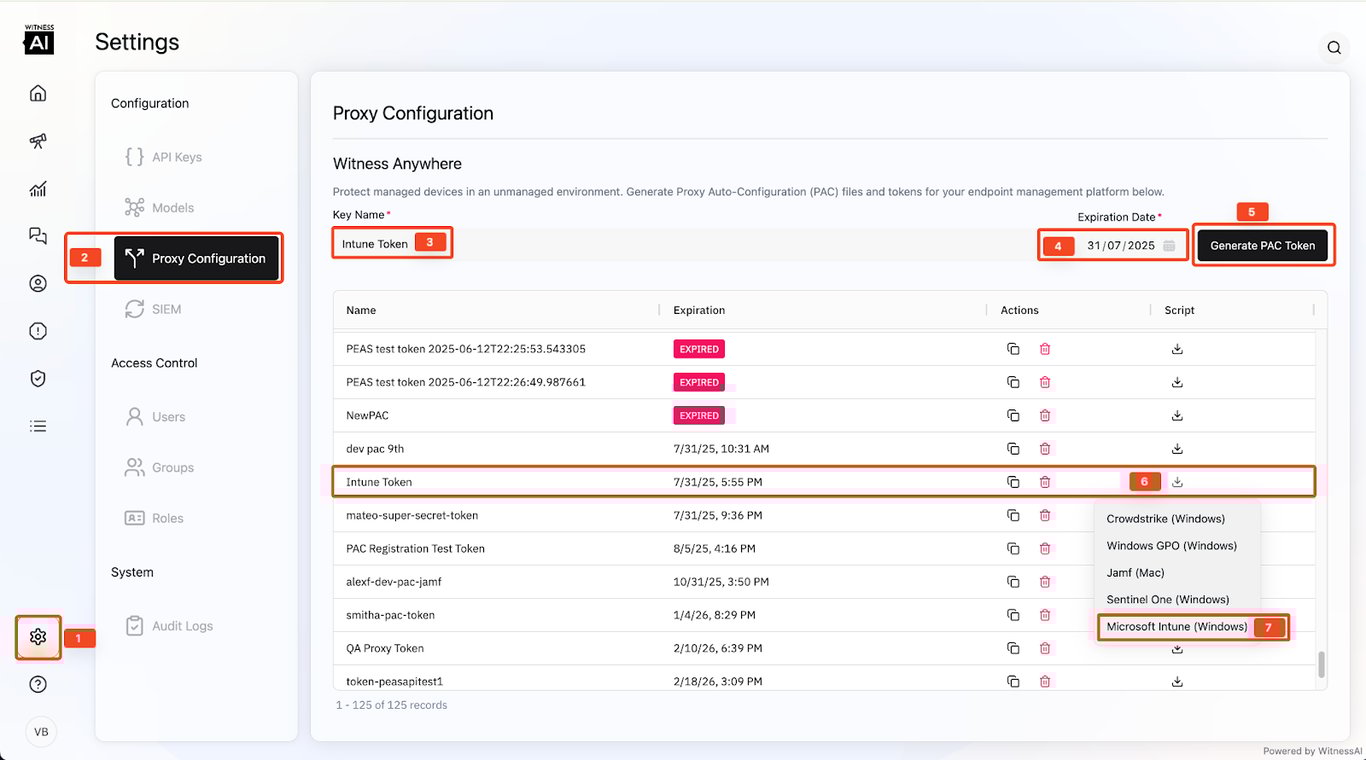
- Locate the row in the list with the Key Name and Expiration Date of the PAC Token you created (6), and click the Download Symbol.
- Click on Microsoft Intune (Windows) (7) from the dropdown, and a zip file will be downloaded to your Downloads folder.
The downloaded file will have a name similar to: 1227db3823fcc1c7cd1db6cc3ed0c5cc1c7cd1da15c5b50a5b.zip.
It will uncompress to a folder of the same name, containing another folder called azure_vdi with two files:
register_device.ps1: A powershell script to register the user device with Witness Anywhere.
flush.ps1: A powershell script to deregister the user device from Witness Anywhere.
Configure The Device Group
- Log in to Intune Admin Console
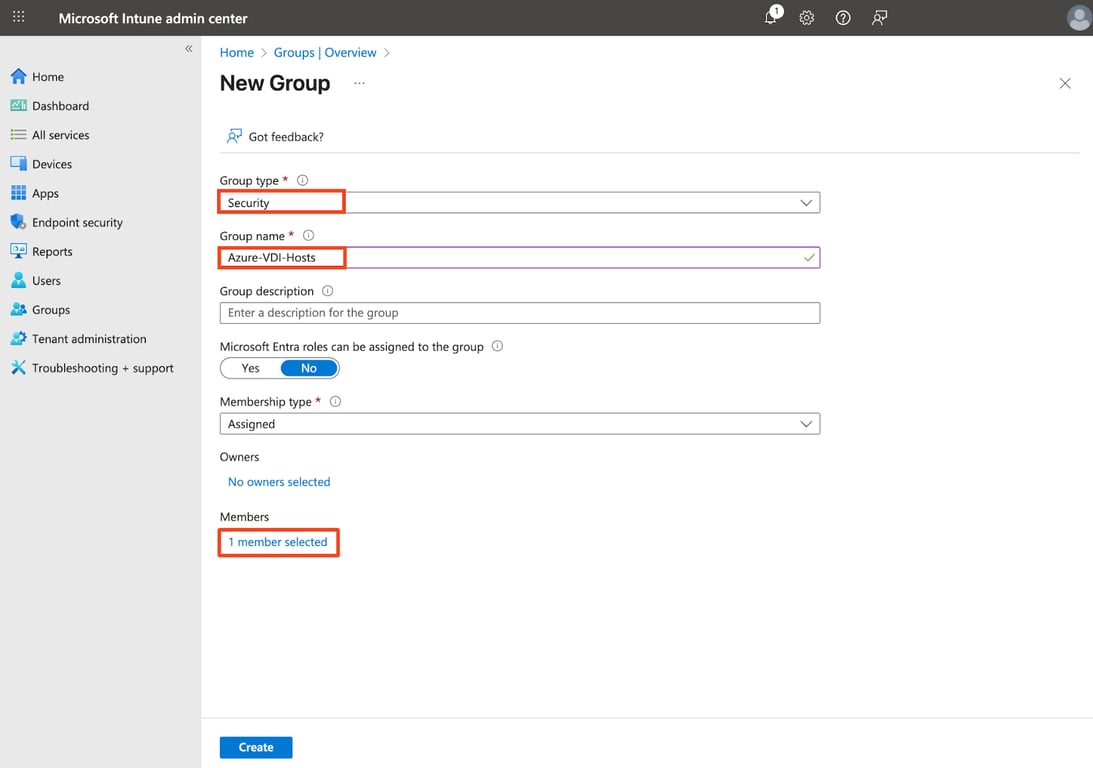
- Navigate to Groups and click on New group
- Enter the following information:
- Group type: Security
- Group name: Azure-VDI-Hosts
- Under Members, click on No members selected and add all the Azure VDI Hosts.
- Finally Click on Create
Registration Script Deployment
- In the Microsoft Intune Admin Center, navigate to Devices > Scripts and Remediations > Platform Scripts, click Add, and select Windows 10 and later as the platform.
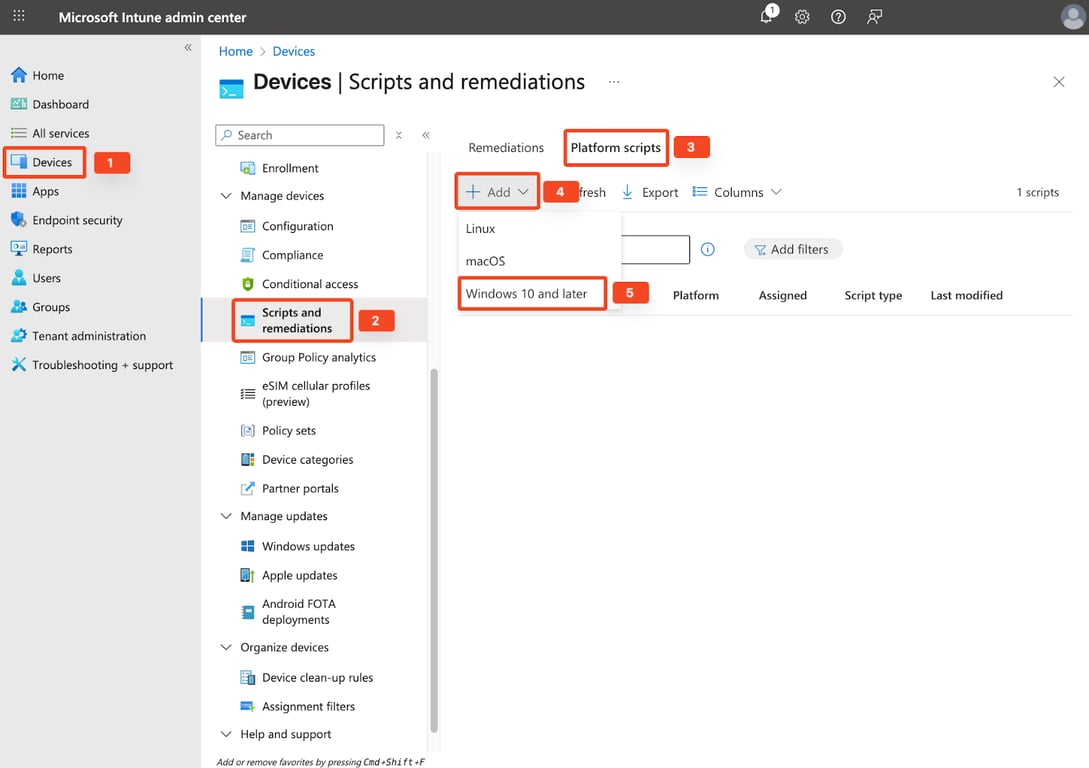
- Enter the name of the script as Witness-Anywhere-Registration, then click Next to proceed
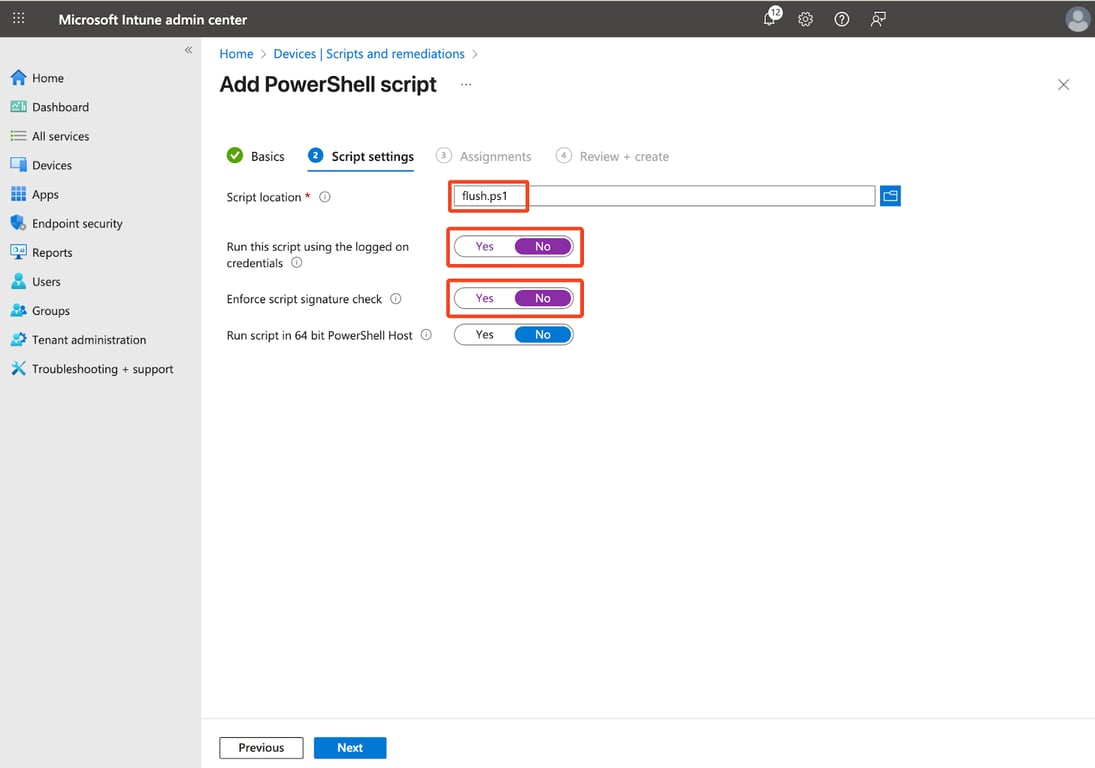
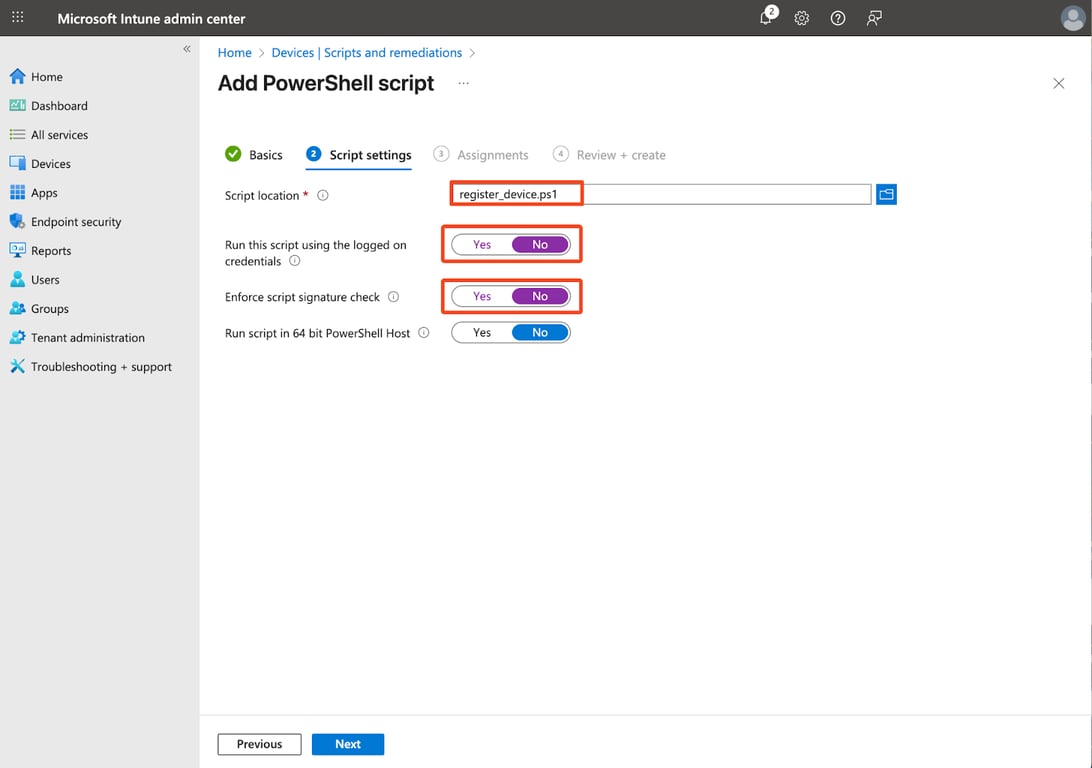
- In the Script settings section, enter the following details and click Next:
- Script location: Browse and select the register_device.ps1 file downloaded from the WitnessAI console
- Run this script using the logged on credentials: No
- Enforce script signature check: No
- Run script in 64 bit PowerShell Host: No
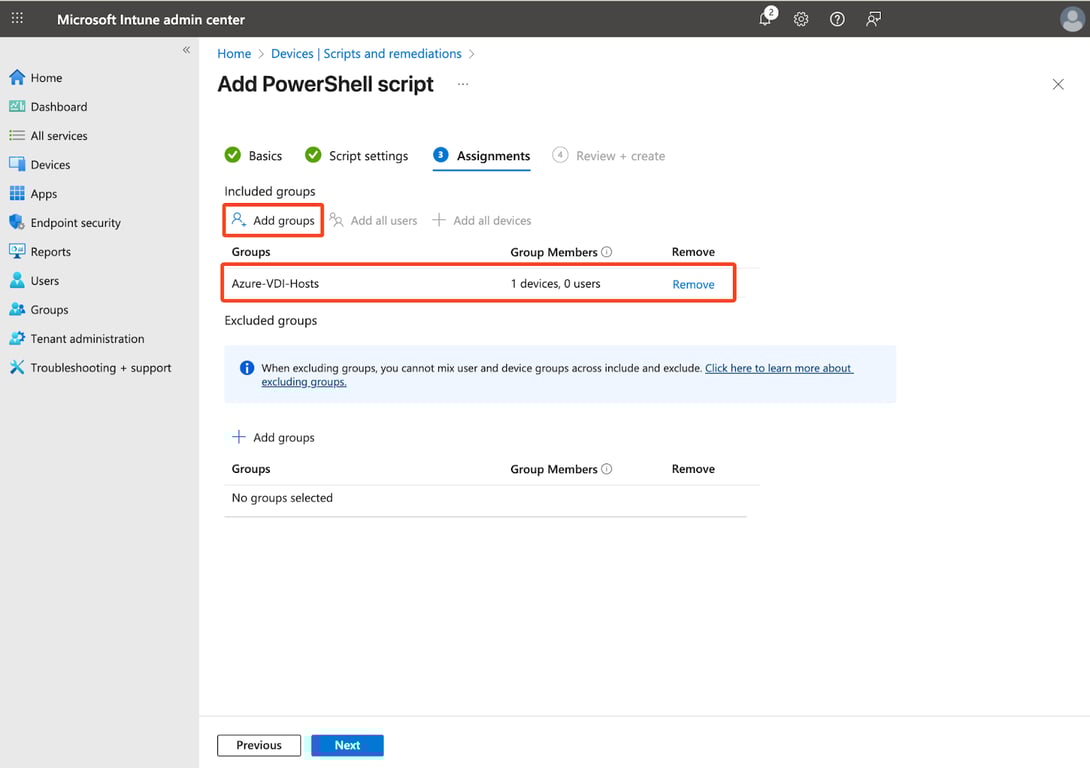
- In the Assignments section, click Add groups under Included groups, select the previously created device group Azure-VDI-Hosts, and then click Next.
- Finally, review the configuration summary and click Create to complete the script deployment.
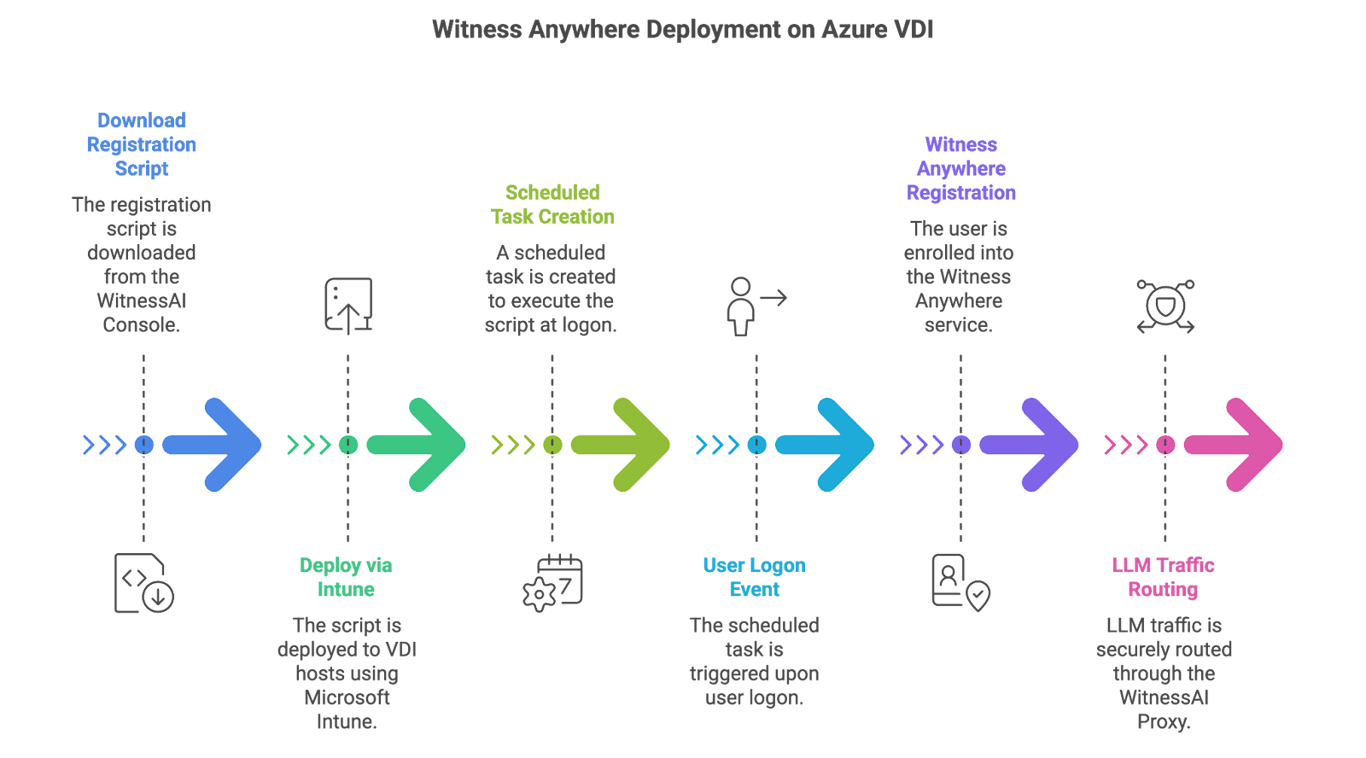
- At this point, the script will be pushed to all VDI hosts that are members of the selected device group, and a scheduled task named "Witness-Anywhere-Registration" will be created on each host to run automatically at user logon.
- When a user logs on to a VDI host, the registration script executes, enrolling the user into Witness Anywhere and applying the configured Proxy PAC URL. From that point forward, all LLM traffic initiated by the user will be automatically routed through WitnessAI for policy enforcement and monitoring.
Note: The registration script will be stored in the location specified below. Please ensure that this path is included in the persistent storage configuration.
C:\Users\Default\AppData\Local\WitnessAI
Flush Script Deployment
- To flush the Witness Anywhere configuration from a VDI host, follow the same steps as when deploying the registration script. However, instead of selecting the register_device.ps1 file, use the flush.ps1 file to remove the configuration.
- When the script is executed on the host, the currently logged-in user is de-enrolled from Witness Anywhere. Additionally, the scheduled task created for Witness Anywhere registration is removed, and old log files are cleaned up.
Logs: C:\Windows\Temp\pac-flush-log.txt