WAI Docs Wed Aug 19 13:22:37 EDT 2026
List
Quick Start
Quick Start
User Guide
User Guide
Policies - GuardRails
Policies - GuardRails
Witness Anywhere: Remote Device Security
Witness Anywhere: Remote Device Security
Witness Attack
Witness Attack
Administrator Guide
Administrator Guide
404
404
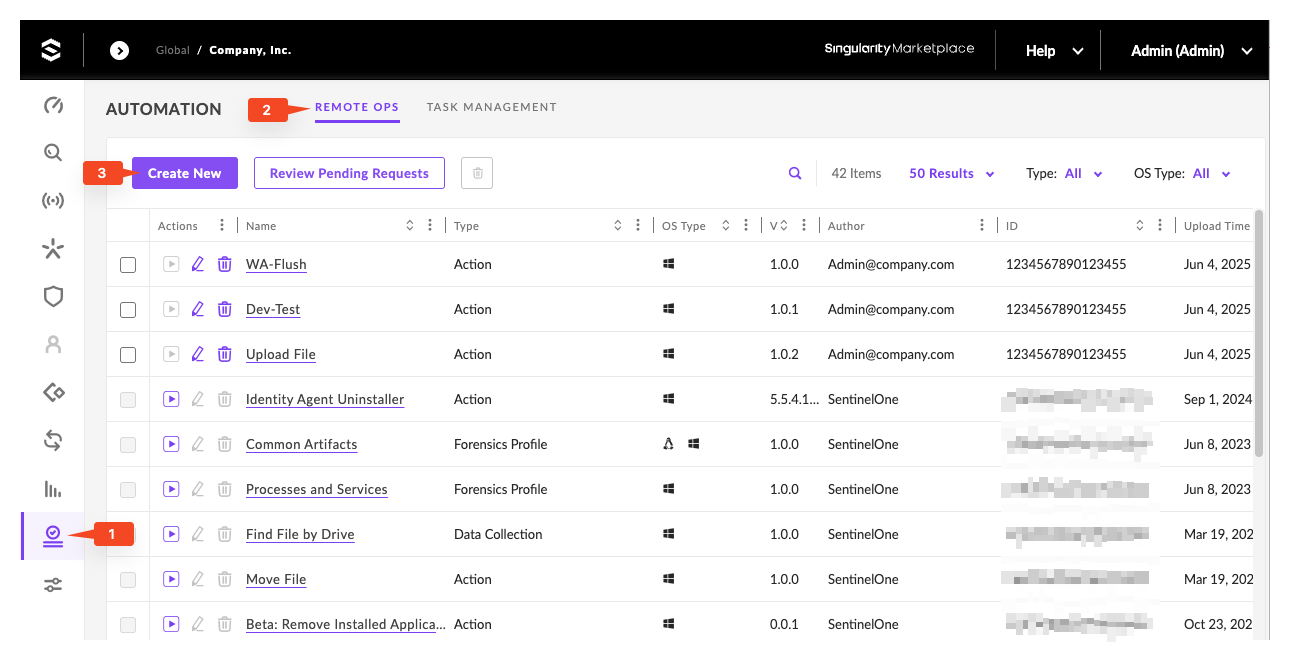
SentinelOne Automation > Remote Ops page showing a list of existing scripts (WA-Flush, Dev Test, Upload File, Identity Agent Uninstaller, Canvass Artifacts, Processes and Services, First File by Drive, Move File, Beta-Remove Installed Applica…). The ‘Create New’ button (2) and ‘Remote Ops’ tab (3) are highlighted. Used for importing the Witness Anywhere registration script.
Deploy on Windows with SentinelOne
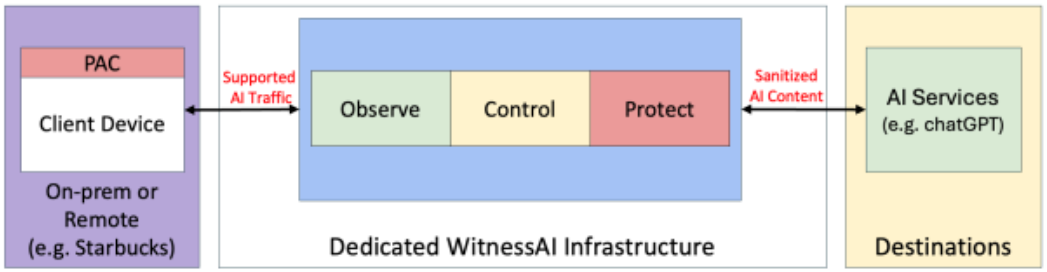
Witness Anywhere enables portable and remote endpoint devices to connect directly to your dedicated WitnessAI instance, without having to connect through your organization’s firewall. This keeps your AI models, applications, and traffic (AI Services) secure when accessed from your portable devices, and over public networks.
Witness Anywhere accomplishes this by deploying “on-device proxy auto-configuration” (PAC) to your endpoint devices using your Endpoint Management Solution (EMS).
Witness Anywhere works just like using WitnessAI from within your firewall, by routing AI-specific traffic to your dedicated WitnessAI service, instead of allowing traffic to connect directly to AI destination services.
Important note: If a monitored device cannot connect to your dedicated WitnessAI service for any reason, by default all AI traffic will connect directly to its intended destination, and no security controls will be applied. This is configurable upon request.
Contact your WitnessAI Account Team or Support for assistance.
Prerequisites
Witness Anywhere for Sentinel One requires the following:
- Sentinel One agent must be deployed on your target devices.
- Monitored devices must be running the current or prior Windows version (10 or 11).
- Your company has been onboarded to WitnessAI.
- Your dedicated WitnessAI infrastructure has been provisioned.
- At least one supported AI Service is configured in WitnessAI for testing purposes.
Generate Device Registration Scripts
To register devices with Witness Anywhere you must create a PAC Token. Then you will download the PAC registration scripts. For each supported combination of monitored device plus EMS platform, two scripts are provided. One applies PAC settings to a device, the other removes PAC settings from a device.
On your WitnessAI console, click Settings in the left-side menu, then select Proxy Configuration.
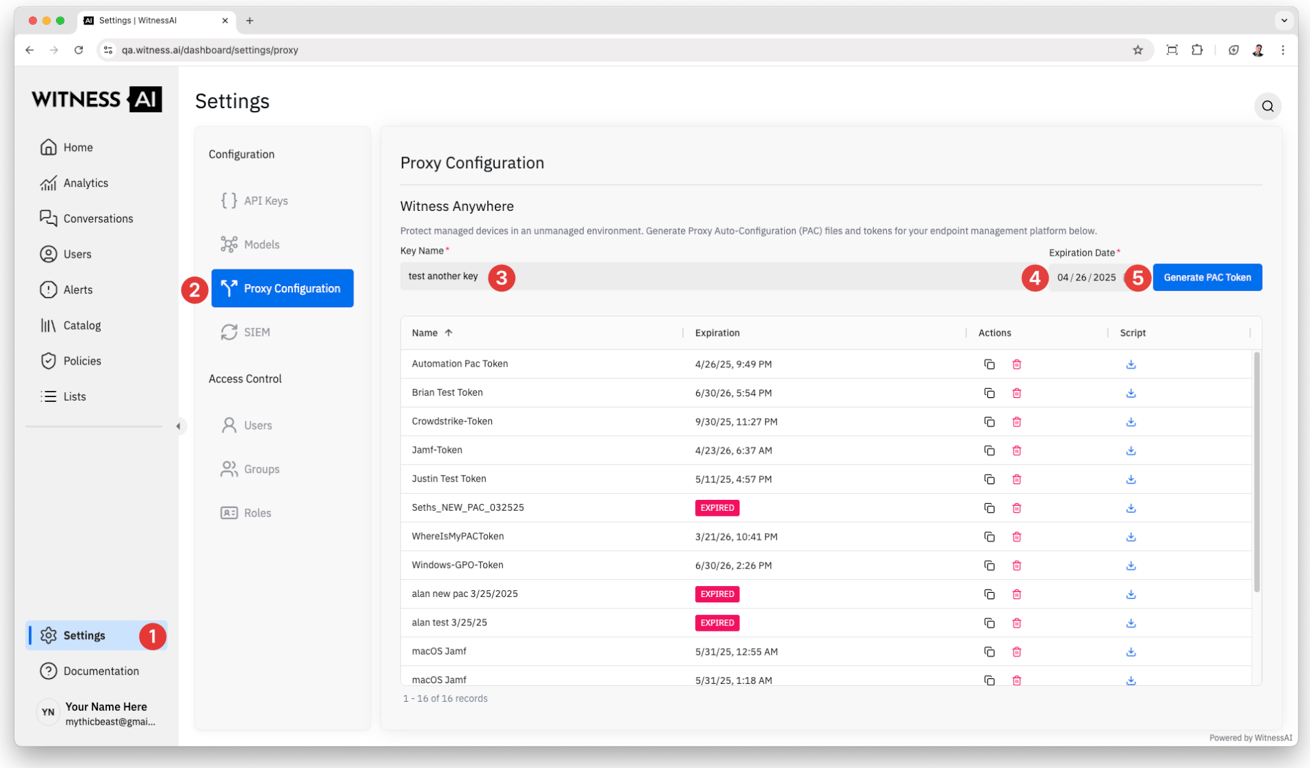
Type your preferred token name in the Key Name field (3) and select the Expiration Date (4).
The Expiration Date should allow time for you to complete the current deployment, for example 30 days.
Once a device has been registered with Witness Anywhere, the token is no longer required. An expired token will not cause the devices already deployed to stop working
Click (5) Generate PAC Token. When it completes you will see this message flash briefly on your screen:

Download Device Registration Scripts
To download the generated scripts, navigate to the row with your chosen Key Name in the Name column and click the corresponding download symbol on the right side (6).
A dropdown will appear, click on Sentinel One (Windows) (7).

This will download a ZIP file with a long random name (e.g., 7786b0568ec6f80f256350ca7786b0568ec6f80f256350ca.zip). Rename it to something meaningful like PAC_scripts.zip and unzip it. Inside, you’ll find two folders—ad_joined and non_ad_joined—each containing two scripts: register_device.ps1 to apply PAC settings, and flush.ps1 to remove them.
Import Device Registration Scripts
Import the registration script to your Sentinel One Scripts.
- Navigate to Automation > Remote Ops, then click on Create New.
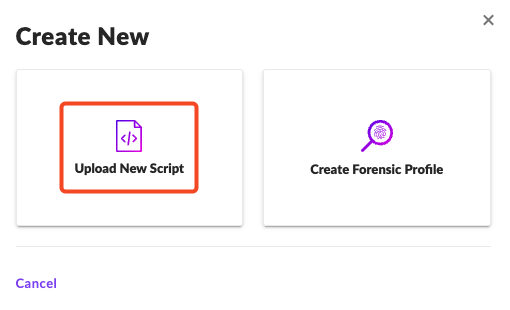
- Now, in the pop-up window, click on Upload New Script.
- In the next screen, enter the following details and click Next:
- Script Name: register_device
- Script Type: Action
- OS Type: Windows

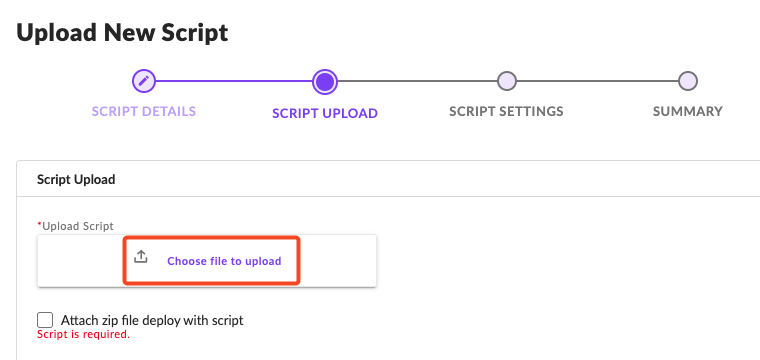
- Now, click on the Choose File to Upload button, select the register_device.ps1 script file downloaded earlier, and click Next.
Note: If your devices are domain joined, use the register_device.ps1 file located in the ad_joined folder.
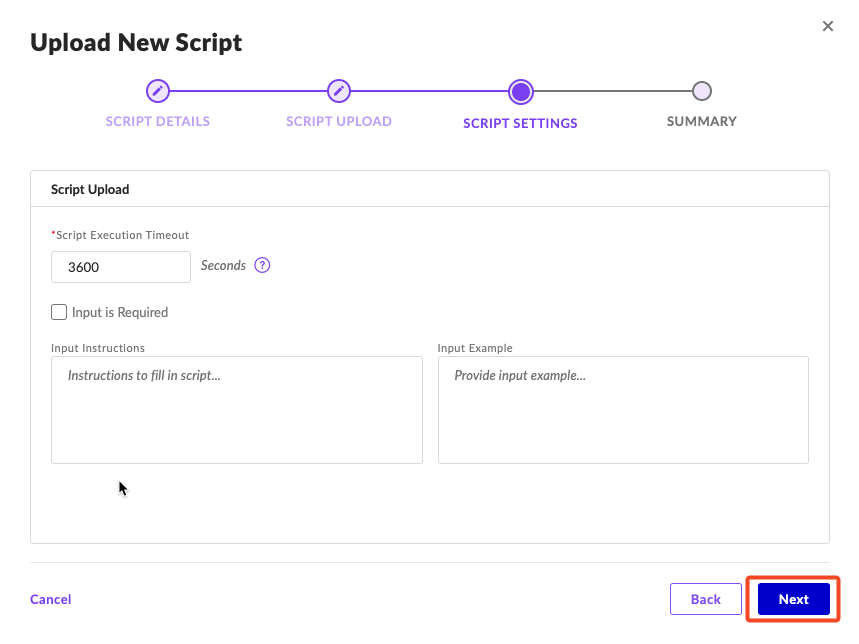
- On the next screen, simply click on Next.
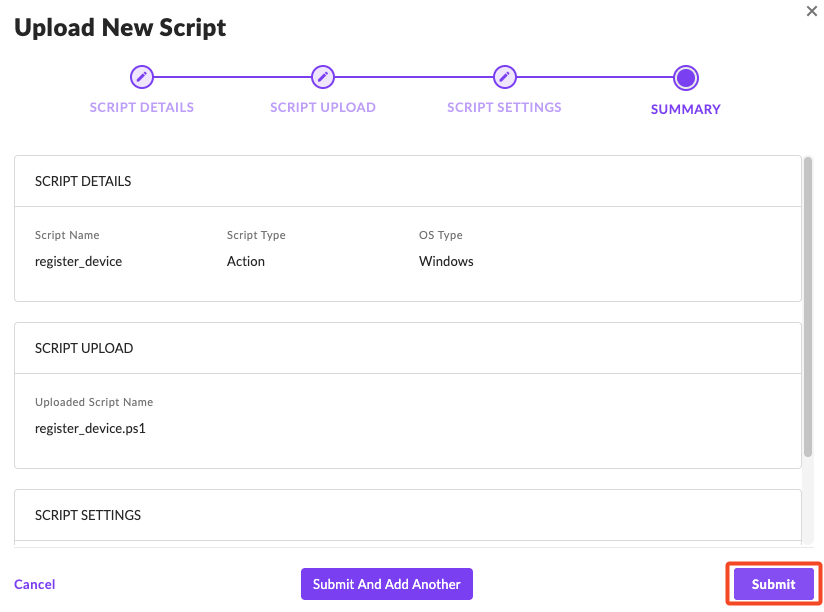
- Finally, click on Submit on the Summary section.
- Perform the same steps as above to create a script for the flush.ps1 file you saved earlier. Choose a name for this script, for example “flush”. As before, use the script in the ad_joined folder for domain joined devices, and the script in the non_ad_joined folder for non-domain joined devices.
Testing Device Registration
Before deploying to a large group of devices, it’s good practice to test on an individual device, or a small group of devices representing the various devices in your environment.
Requirements
As listed in the Prerequisites section, these settings are required for Sentinel One to deploy PAC settings to target devices:
Sentinel One agent must be deployed on your target devices.
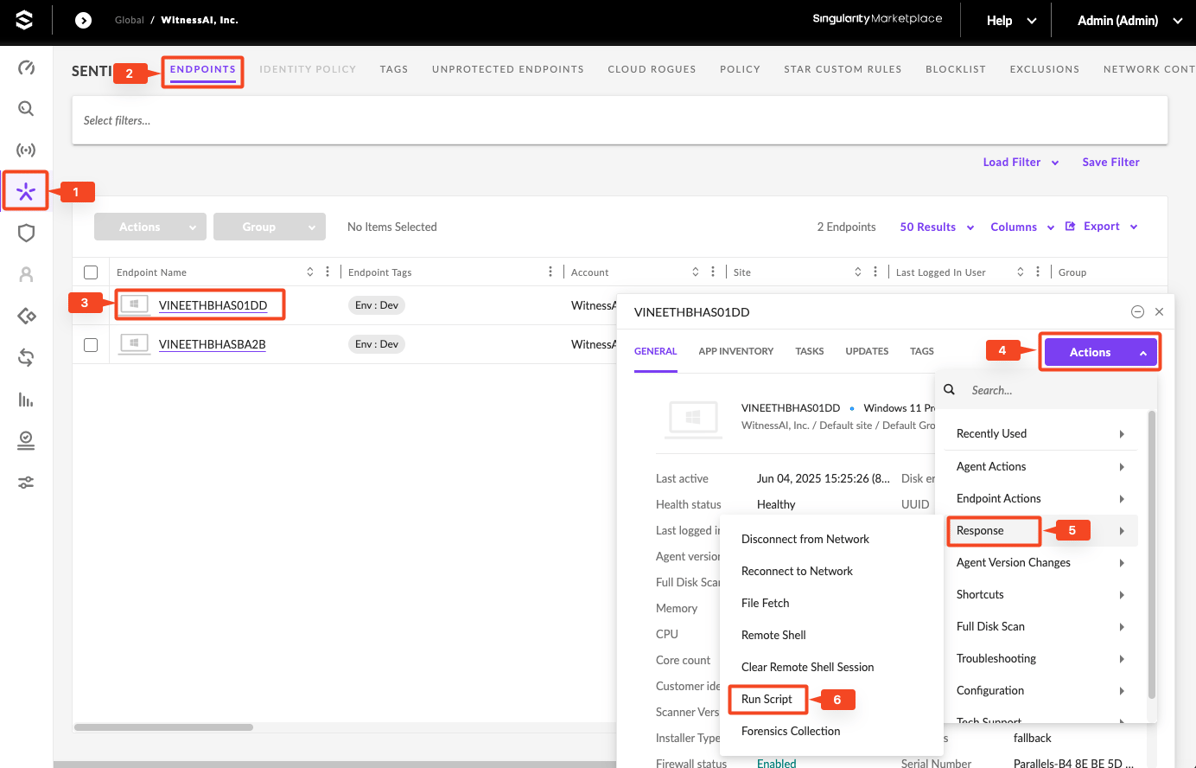
- In the SentinelOne Console, go to Sentinels > Endpoints.
Click the target Hostname, then select the Device Entry.
Go to Actions > Response > Run Script
- In the Script Configuration pop-up window, select the register_device script from the list, then click Next to proceed.

- In the Input/Output section, set Output Destination to None – No Output Handling Needed, then click Next to continue.
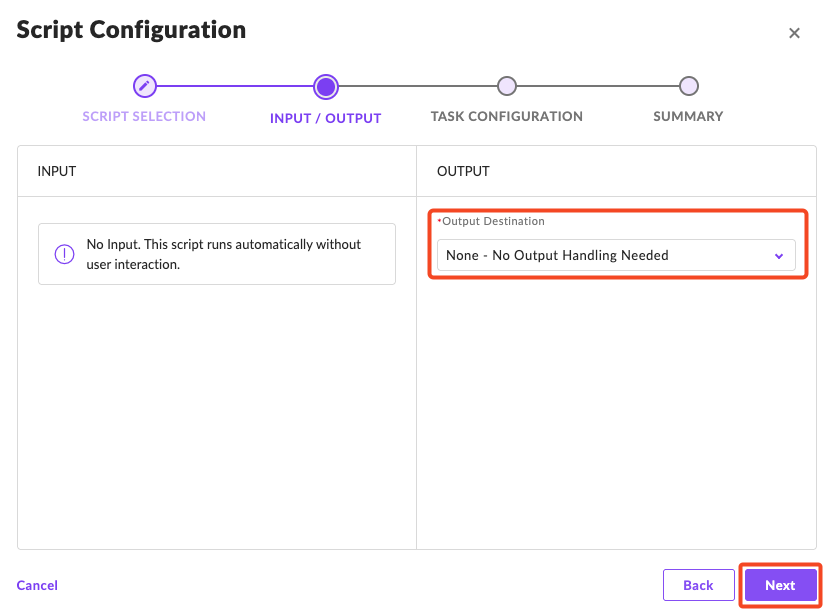
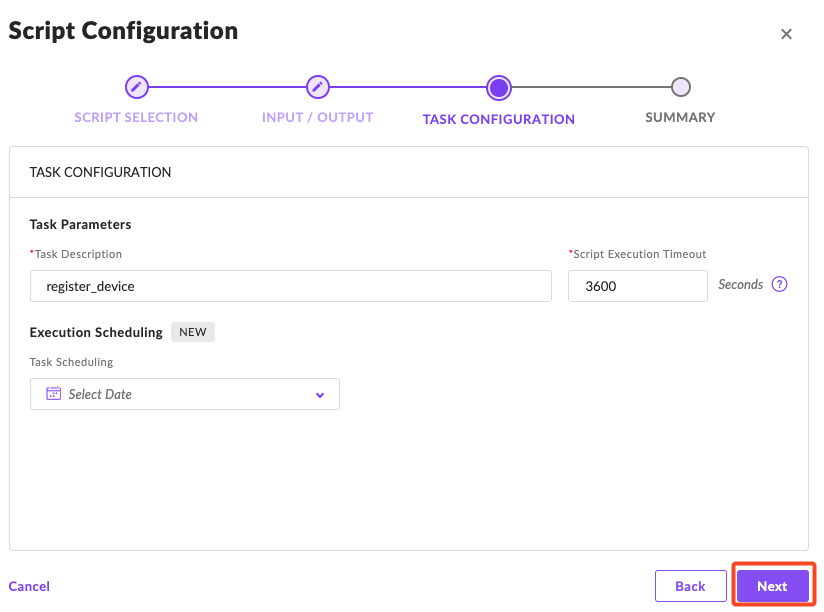
- In the Task Configuration section, simply click Next to proceed.
- In the Summary section, review the configuration, then click Submit to execute the script on the device.
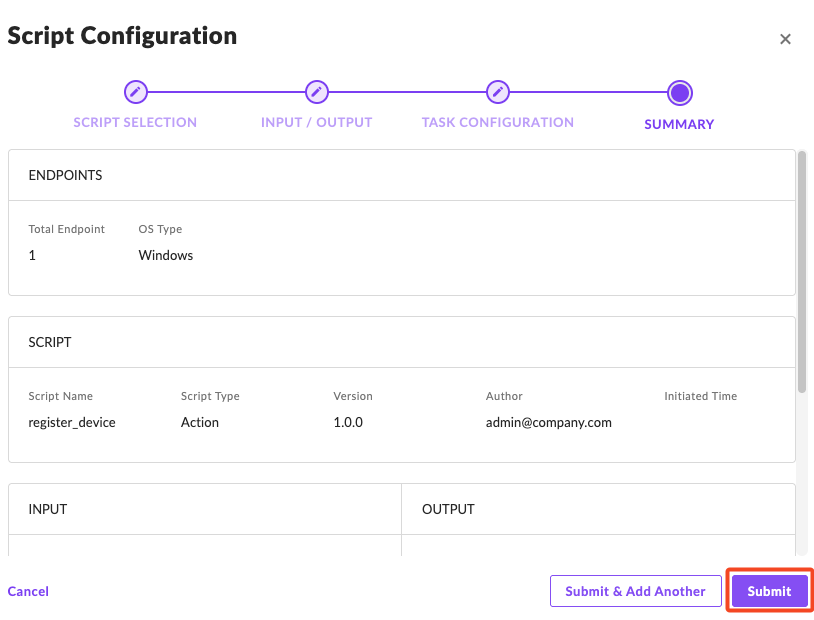
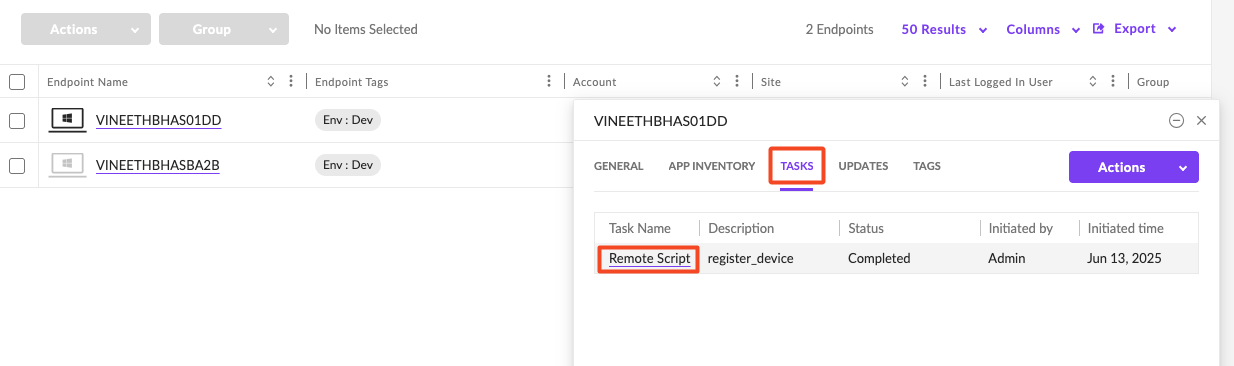
- To view the result:
- Navigate to the Tasks tab and click the corresponding Remote Script task name.
- On the task details page, click Remote Script > Output Raw Data to view the execution results.
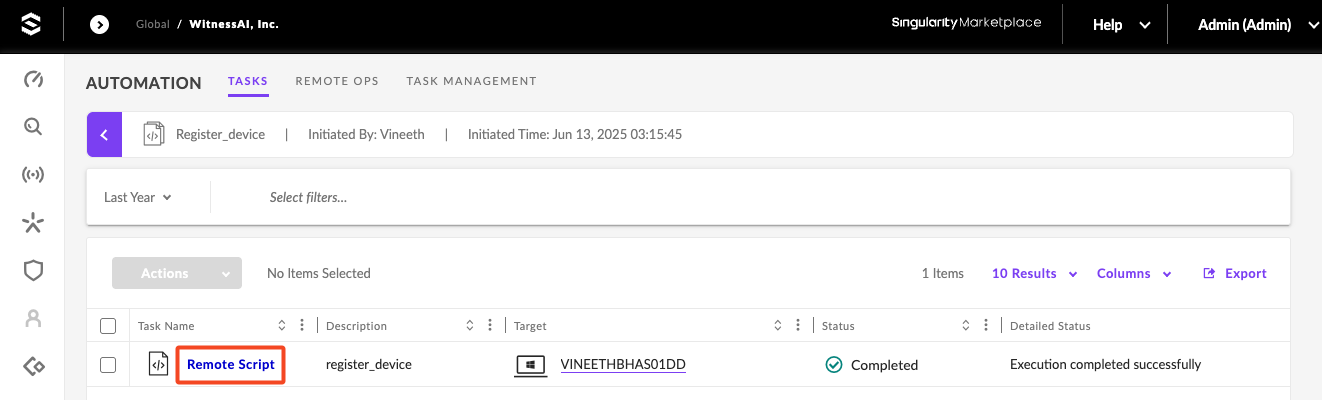
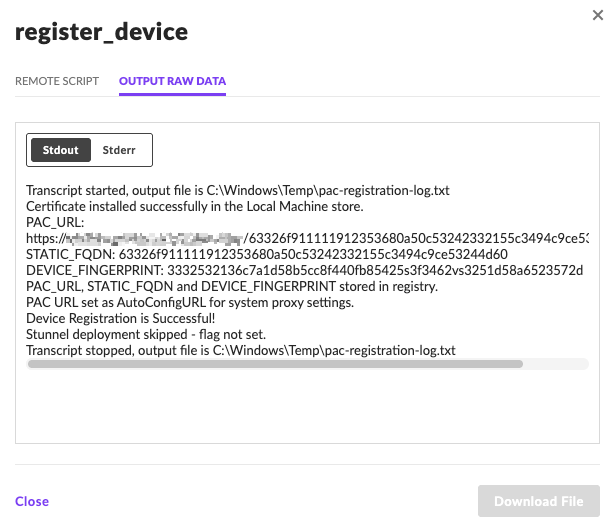
Once the script completes, scroll to the end of the output and verify that it reads: “Device Registration is Successful!”
- After the device is registered, use it to connect to a supported AI service and submit a few user prompts. After receiving your responses, verify the prompts and responses were captured in your WitnessAI Conversations page.
Removing PAC from Devices
Using the flush script instead of the register_device script, follow the steps in the above Testing Device Registration section to remove PAC from any individual device.
Bulk Deployment to Groups
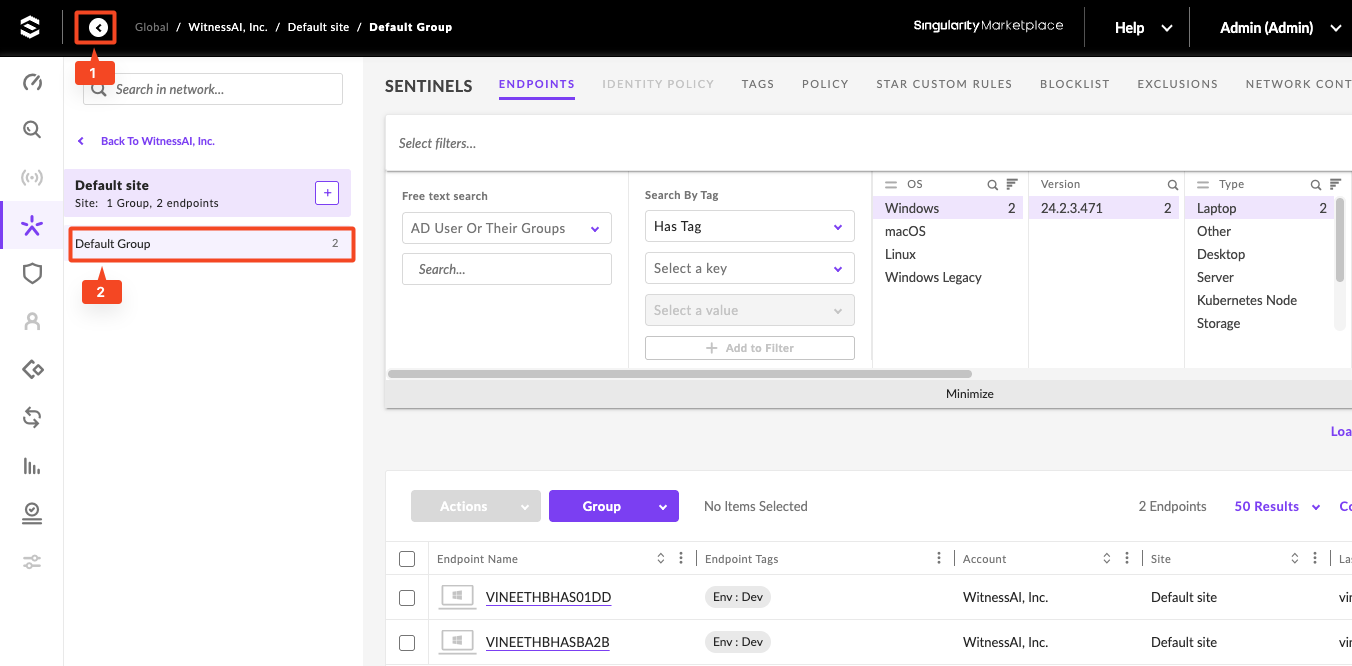
- In the SentinelOne Console, go to Sentinels > Endpoints.
- Click the greater-than ( > ) symbol to expand and select the appropriate site and group. Then, apply filters such as Tag, Operating System, or other relevant criteria to refine the list of target devices.
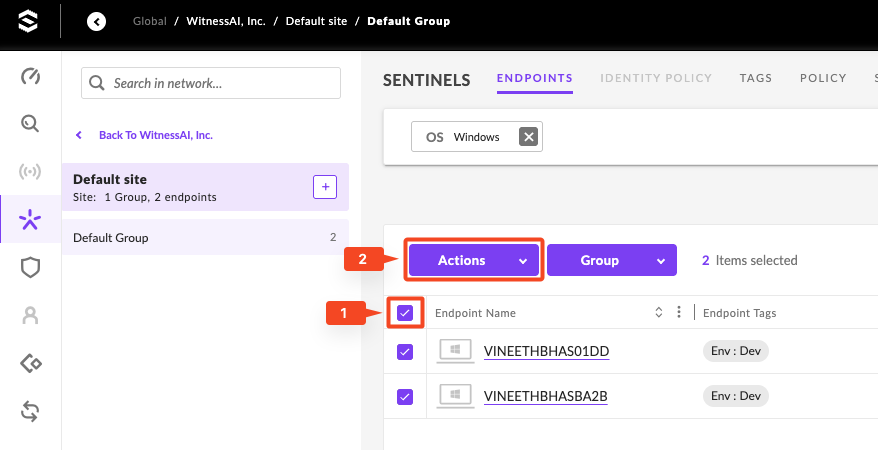
- After filtering the desired devices, check the first checkbox at the top of the list to select all devices. Then, click Actions and follow the same steps outlined in the Testing Device Registration section to deploy the register_device script to all selected devices.
4. To view the results, navigate to Automation > Tasks and select the Remote Script task. This will display all associated device tasks along with their execution status.
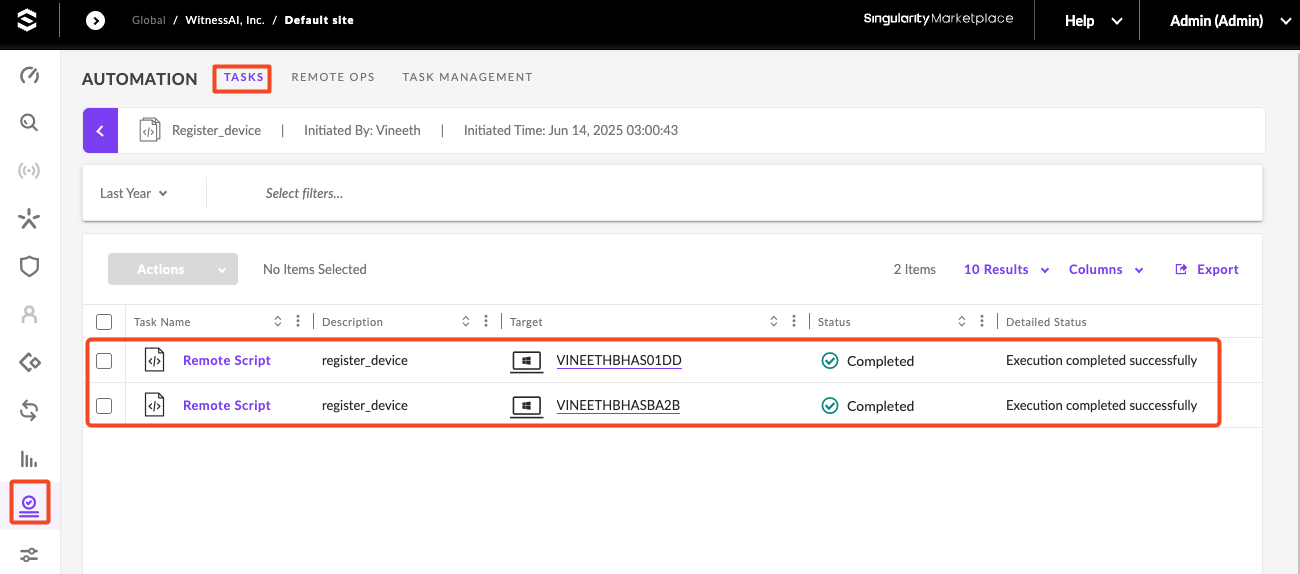
- To export the results, click the “Export” option available on the same screen after the script execution task completes.